Connect the audio
The goal: click in your ear, the mix wherever the room needs it, from one device.
What you need
- An iPad, iPhone or Mac with CueConductor and a cue.
- Any of: wired earbuds, a USB audio interface, an HDMI display with sound, or Bluetooth earbuds.
Plug in and look
- Connect the interface or display, then open a cue.
- Tap Audio I/O in the Library toolbar, or the speaker button in the cue view.
- The sheet shows every output the device is driving right now, as one wide output. HDMI and a USB interface together count every channel each one has.
Pick where each thing goes
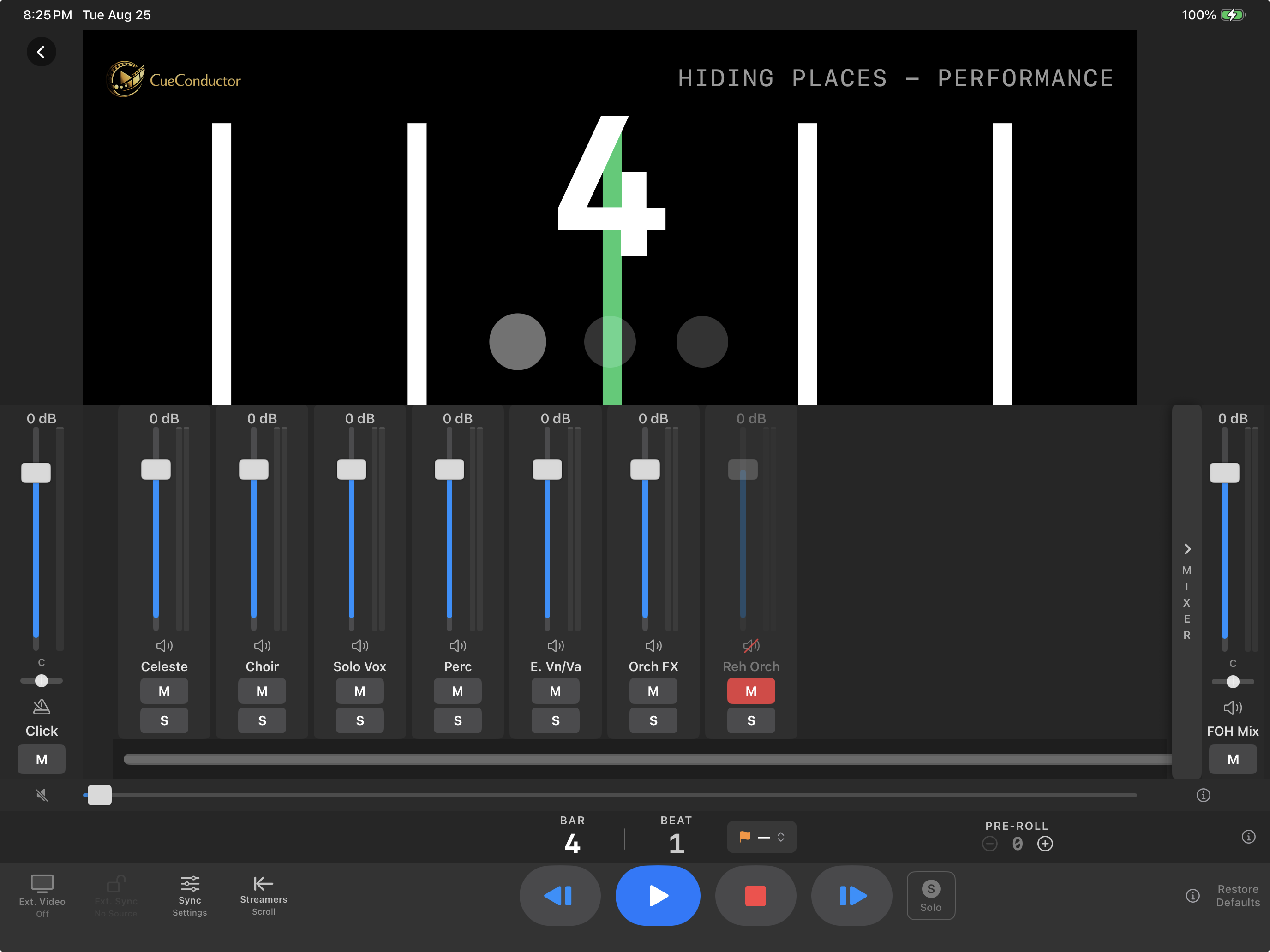
The Click and FOH strips each have an output pair menu. Tap the pair name on a strip and choose from all available pairs. On a two-output device there is one pair, and both strips share it.
With a stereo pair in your ear, use the pan knobs: push Click hard left and FOH hard right and each ear gets one complete signal. That is the classic podium setup, and CueBuilder can store it as a cue's default routing.
Two mixes when the room has its own speakers
A device with more than two outputs, or an interface plus HDMI, can run two complete mixes:
- Conductor plays on the podium with no delay.
- External plays to the hall with the house latency from External Display applied.
Flip a Click or FOH strip to External with the switch above the strips to set that mix's fader, mute, pan and pair. The external click starts muted so it never reaches the audience by accident. On a device with only two outputs the switch stays hidden.
Bluetooth earbuds
With nothing wired attached, the audio goes to Bluetooth earbuds and the click is sent early by the delay iOS reports for them. See Earbuds on a stand for the trim and the microphone calibration.
If it doesn't work
- An output is silent. Open Audio I/O and tap Copy under the log, then compare the pair each strip points at with the channels the interface shows. Both strips landing on one pair doubles the sound and the pair chip says so.
- The device changed while playing. Changes made during playback apply at the next Stop.
- Mac: the sound comes from the wrong device. CueConductor drives its chosen devices directly, independent of the Mac's system output. Choose the device in Audio I/O, not in System Settings.