Five-minute quickstart
By the end of this page you will have heard a cue with its click, seen the counter and streamers, and connected a second device as a stand.
1. Get a cue
- Open CueConductor. The Library is empty the first time.
- Tap Tips in the toolbar and choose Browse CueConductor Catalog.
- Pick a title marked as a perusal edition and tap Download. Titles with a PIN need the code that came with your licence.
- The cue appears in the Library when the download finishes.
2. Play it
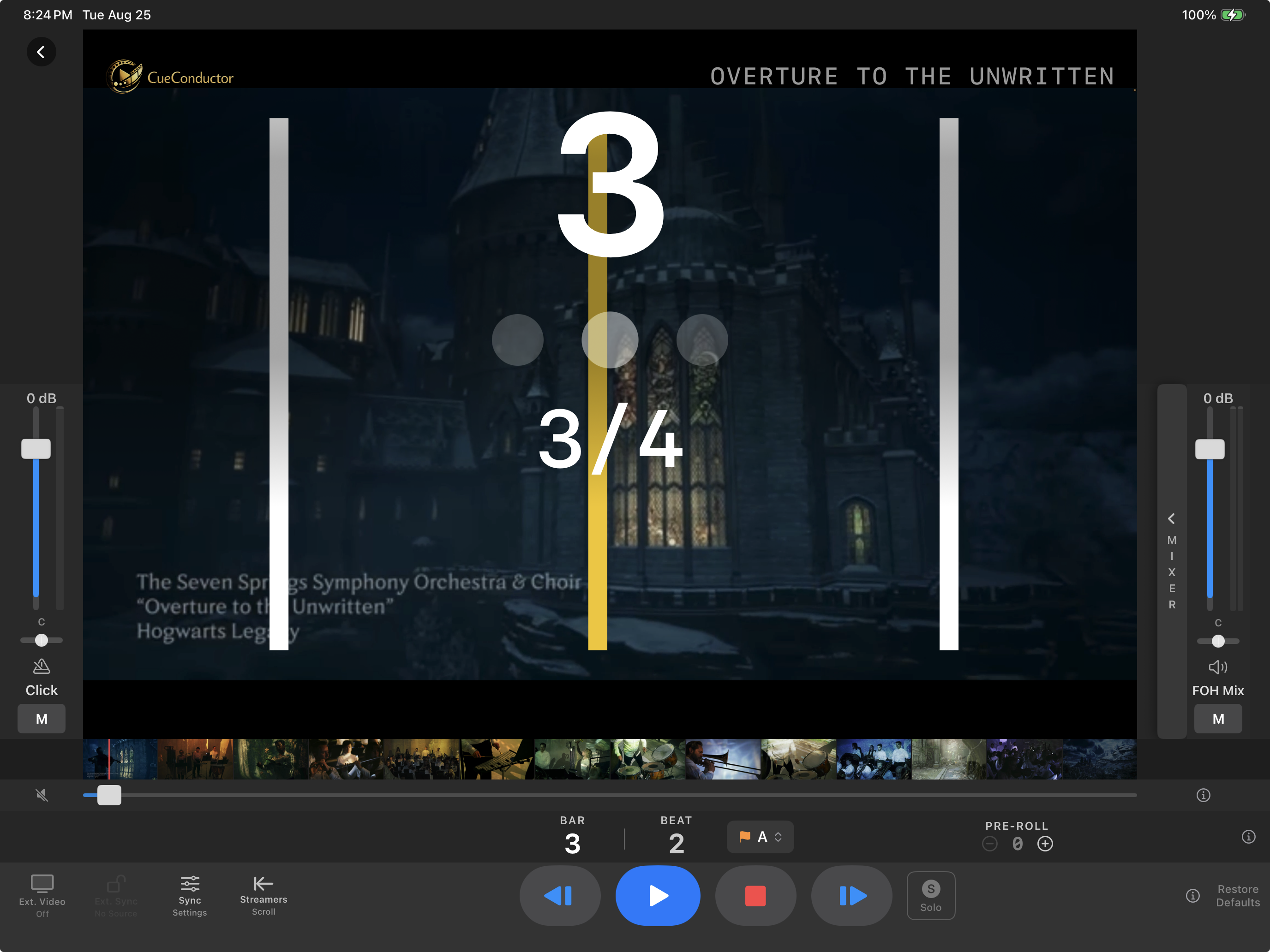
- Tap the cue. The cue view opens with the first bar on the counter.
- Press Play. You hear the click and the mix, and the streamers fly across the picture ahead of each landing.
- Press Stop. Press it again quickly to go back to the start.
- Drag the Click and FOH faders at the sides. The pan knobs fold each to one ear when you push them hard to a side.
3. Jump around
- Type a bar number in the locate strip and press Go to jump there, with or without playback.
- Tap a rehearsal letter in the marker list. Jump & Pause sets up a section; Jump & Play rolls straight into it.
4. Connect a stand
On a second iPad or iPhone on the same Wi-Fi:
- Install CueConductor and download the same cue.
- Open the cue, tap Sync, and choose Link to DAW. Leave Follow Master on Any Master.
Back on your own device:
- Tap Sync and switch on Conduct (Broadcast).
- Press Play. The stand's counter, beat dots and streamers follow you. It hears no audio from you; it only follows.
Which device is the conductor?
Any device can lead. Whichever one has Conduct (Broadcast) switched on is the master for that cue. Switch it off to make the device an ordinary stand again.
Where to next
- Connect the audio for a USB interface, HDMI or earbuds.
- Set up a stand for what players need to know.
- Sync the podium to your DAW if a session is the clock.