Conduct the room
One podium, every stand. Switch on Conduct and every CueConductor on the Wi-Fi follows: counter, beat dots, streamers and page turns, each player reading their own part. No cables, no MIDI, no audio to distribute.
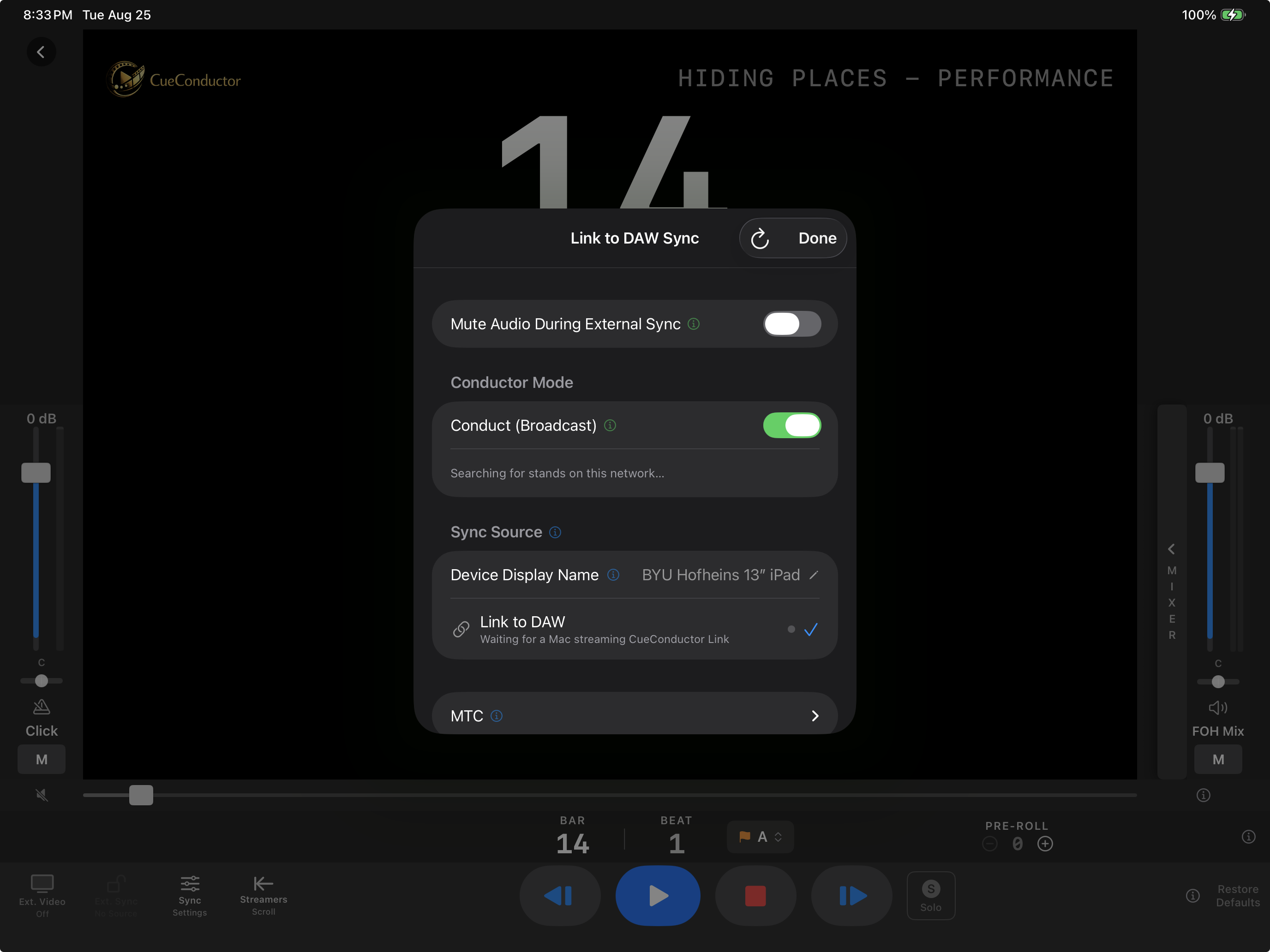
On the podium
- Open the cue.
- Tap Sync and switch on Conduct (Broadcast). The sheet reports when it is searching for stands and when they join.
- Optionally switch on Push Cues to Stands. Every cue you open is then sent in the background to stands that do not have it: MIDI map, overlay, score and parts and a mono click, no stems or video. A stand that already has the full cue keeps its own.
- Press Play. The room follows.
External Sync input is unavailable while conducting; a podium either leads or follows.
On each stand
- Open the same cue, or any cue if the podium pushes cues.
- Tap Sync, choose Link to DAW, and leave Follow Master on Any Master.
- Switch on Follow Master's Cue so the stand opens whatever cue the podium opens, and Accept Pushed Cues if the podium pushes.
The full player-side steps are on Set up a stand.
Several rooms on one network
With two podiums or a podium and a DAW on the same Wi-Fi, each stand picks its master under Follow Master. Masters appear in the list once they have tried to connect. Give your device a name under Device Display Name so players can tell rooms apart.
USB instead of Wi-Fi
A Mac and an iPad connected by cable form a network of their own. Everything above works with Wi-Fi and Bluetooth off on both.
If it doesn't work
- A stand says waiting to connect. Both devices must be on the same network and the podium must have Conduct on. Corporate and guest Wi-Fi often block device-to-device traffic; a hotspot or a travel router solves it.
- The stand opens the wrong cue. Follow Master's Cue applies when the transport stops, never mid-playback. Stop and it switches.
- A pushed cue has no sound but click. That is by design. Pushed copies show a Pushed badge in the library and carry no stems or video.