Picture on a projector
Send the scoring video to a second display or a projector. The audience sees the film; you keep the overlay.
What you need
- A Mac, or an iPad with an M-series chip, for a separate audience picture. Other iPads and iPhones can only mirror their own screen.
- HDMI or AirPlay to the display.
- Pro, or a cue licensed for external video.
iPad
- Connect HDMI with the iPad set to mirror. CueConductor takes the display's own full-screen scene: the external picture appears there at full size, and External Display switches on by itself.
- Open the cue. The external window shows the film while your screen keeps the overlay.
With Stage Manager extending the display instead, a second window opens; drag it to the external display and use its window controls to go full screen.
Mac
- Open the cue and tap the external display button in the transport.
- Tap Open on External Display. A second window opens; drag it to the projector's display and make it full screen.
What the audience sees
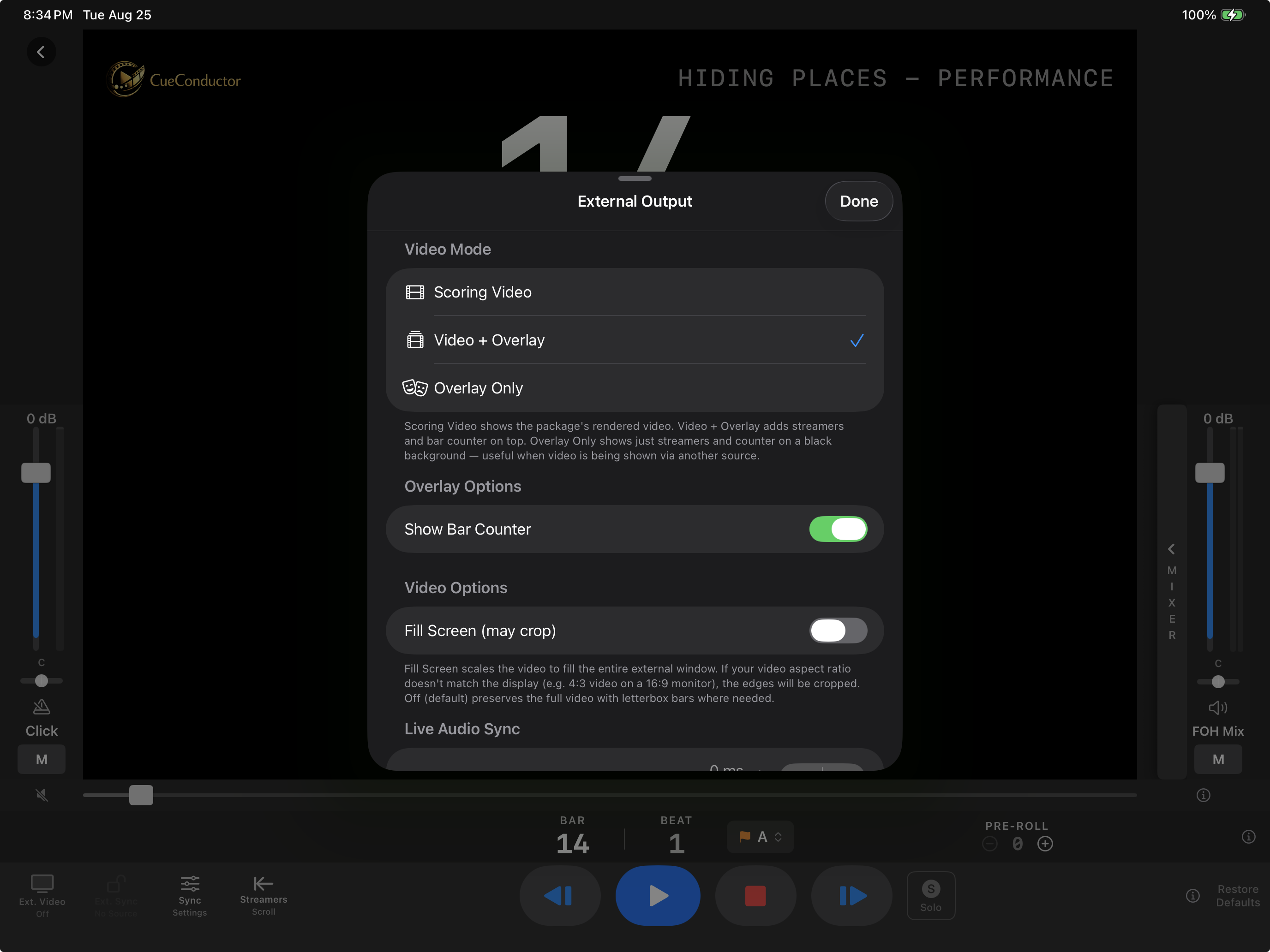
In the External Display sheet choose the mode:
- Scoring Video: the package's video only.
- Video + Overlay: streamers and counter on top.
- Overlay Only: streamers and counter on black, for when the video comes from another source.
Show Bar Counter hides or shows the counter on the external picture. Fill Screen scales the video to fill the display and crops the edges when the aspect ratio does not match.
Keep picture and pit together
Projectors and PAs add delay. Set House Latency in milliseconds and the external picture runs ahead by that much, so what the audience sees lands with the orchestra. With Audio uses House Latency on, the External mix follows the same offset. Switch it off for an Audio Latency stepper of its own when sound and picture take different paths, such as HDMI video with the sound on a PA from the interface.
If it doesn't work
- "External Display Not Available." The device mirrors only. A separate audience picture needs an iPad Pro or iPad Air with an M-series chip, or a Mac. Everything else works.
- The picture is on the iPad, not the projector. The iPad must be mirroring, not extending with Stage Manager, for the automatic full-screen scene.
- Picture and sound drift apart. Adjust House Latency while a cue plays; the change applies live.